
LMN Status & Troubleshooting
Accessing your dashboard
-
Go to truemed.com
-
Click Sign In

-
Enter the email address you used when completing your Truemed qualification
-
A one-time passcode will be sent to that email. Enter it to log in
-
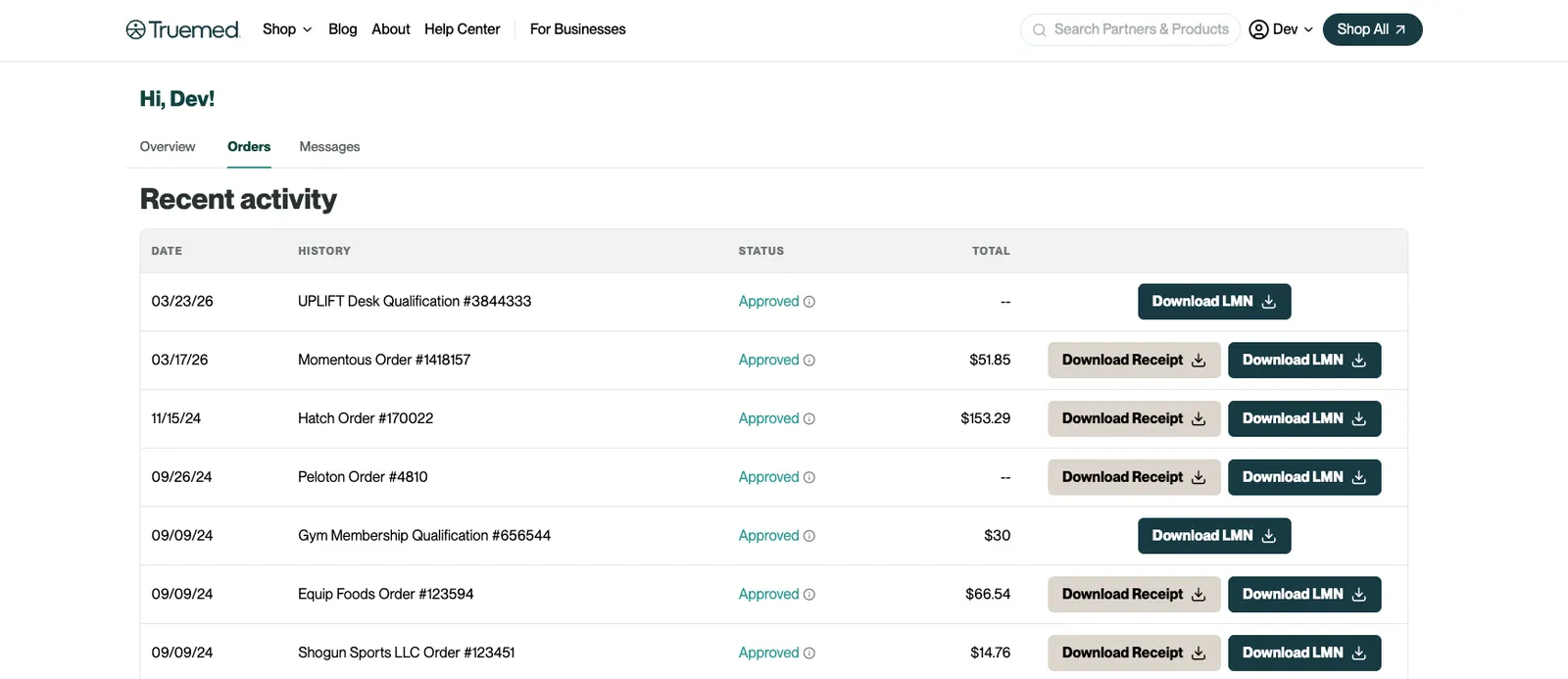
Your LMN and receipt (if applicable) are available on your Overview page. Download your LMN from the Download Documents section, and find receipts there or within the individual order in the Orders tab
Checking your LMN status
After you complete Truemed’s clinical intake survey, a licensed provider reviews your health information and determines whether an LMN can be issued. You can check the status of your LMN at any time by logging into your dashboard at truemed.com.
What the statuses mean:
- Pending review — Your survey has been submitted and a provider is reviewing your information. No action is needed from you at this stage.
- Approved — Your LMN has been issued. You can view, download, and share it directly from your dashboard.
- Rejected — The provider was unable to issue an LMN based on the information provided. See the LMN rejected — troubleshooting steps section below for guidance on next steps.
Typical timeline:
Most LMNs are reviewed and issued within a few hours of survey completion. In some cases, review can take up to 1-2 business days. If your status has been pending for longer than two business days, contact support at support@truemed.com.
No confirmation email received
After completing the qualification survey, you should receive a confirmation email from Truemed. If that email hasn’t arrived, here’s what to check:
- Check your spam or junk folder. Confirmation emails occasionally get filtered. Search for messages from
truemed.comorsupport@truemed.com. - Verify the email address you used. Log into your Truemed dashboard and confirm the email address on your account matches the inbox you’re checking.
- Access your LMN directly from the dashboard. Even without the confirmation email, your LMN is available in your dashboard at truemed.com once it has been issued. You can view and download it there at any time.
- Request a resend. If your LMN has been issued but you need the confirmation email resent, reach out to support@truemed.com and the team can send it again.
If you’ve gone through these steps and still can’t locate your confirmation email or LMN, contact support and include the email address you used when completing the survey.
LMN not appearing in dashboard
If you’ve completed the survey but don’t see an LMN in your dashboard, work through these steps:
- Confirm you’re logged into the right account. It’s easy to have multiple accounts if you’ve used different email addresses at checkout or on different devices. Log out and log back in using the exact email address you used when completing the survey.
- Give it a little time. If you just completed the survey, your LMN may still be in review. Most are issued within a few hours, but it can take up to 1-2 business days.
- Refresh your dashboard. Once you’re logged in, do a hard refresh (Cmd+Shift+R on Mac, Ctrl+Shift+R on Windows) to make sure you’re seeing the latest version of your account.
- Check that the survey was fully submitted. If you closed the survey before reaching the confirmation screen, it may not have been submitted. Check your email for any confirmation that the survey was received.
If you’ve tried all of the above and your LMN still isn’t showing up, contact support@truemed.com. Include the email address on your account and the merchant name so the team can look into it quickly.
LMN rejected — troubleshooting steps
We know a rejection is frustrating, especially when you were hoping to use your HSA or FSA funds. Here’s what typically happens and what you can do about it.
Our provider team has identified two common reasons an LMN may not be issued:
- Insufficient research supporting the product for your diagnosis. For some combinations of product and health condition, there isn’t yet enough clinical evidence for a provider to establish medical necessity.
- Insufficient information provided in the survey. If the survey responses didn’t give the provider enough detail to make a determination, they may not have had enough to go on.
If reason #2 applies to your situation, retaking the survey with more detail often makes a difference.
Here’s how to approach it:
- When you retake the survey, look for the option that most closely matches your diagnosis rather than relying solely on the free-text field. Selecting the best-matching option gives the provider clearer clinical context.
- Use the free-text section to add any additional detail about your condition, symptoms, or how the product relates to your health needs. The more specific and relevant the information, the better equipped the provider is to make a determination.
- Be honest and thorough. Providers are looking for a genuine connection between your diagnosis and the product in question.
To request a new survey link, contact support@truemed.com and mention that you’d like to retake the survey. The team will get you a fresh link.